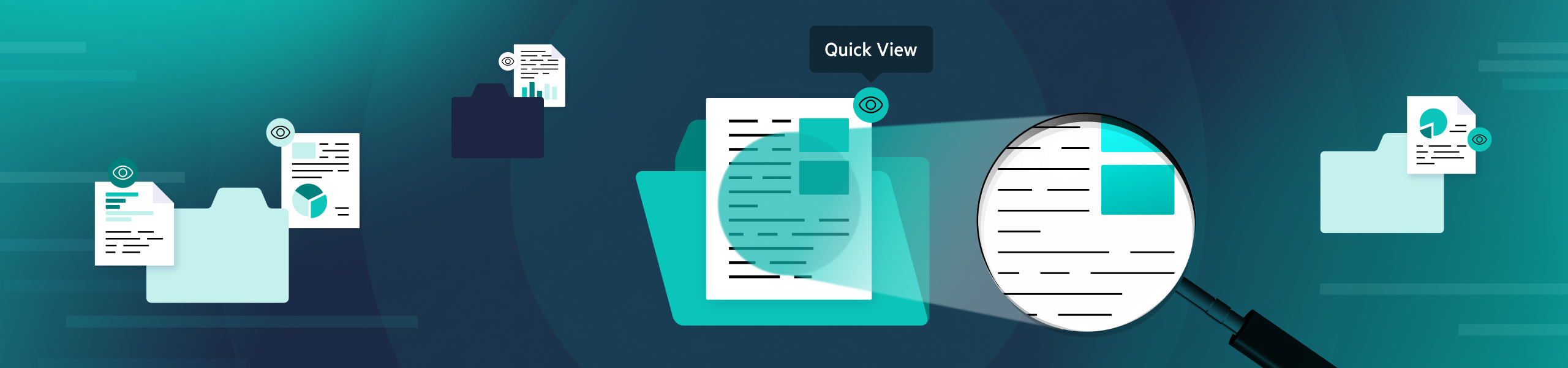
Quick View: Find the Content You Need With Instant Previews
Quick View brings an intuitive, contextual preview option to the Egnyte UI that helps you find what you need without breaking your momentum.
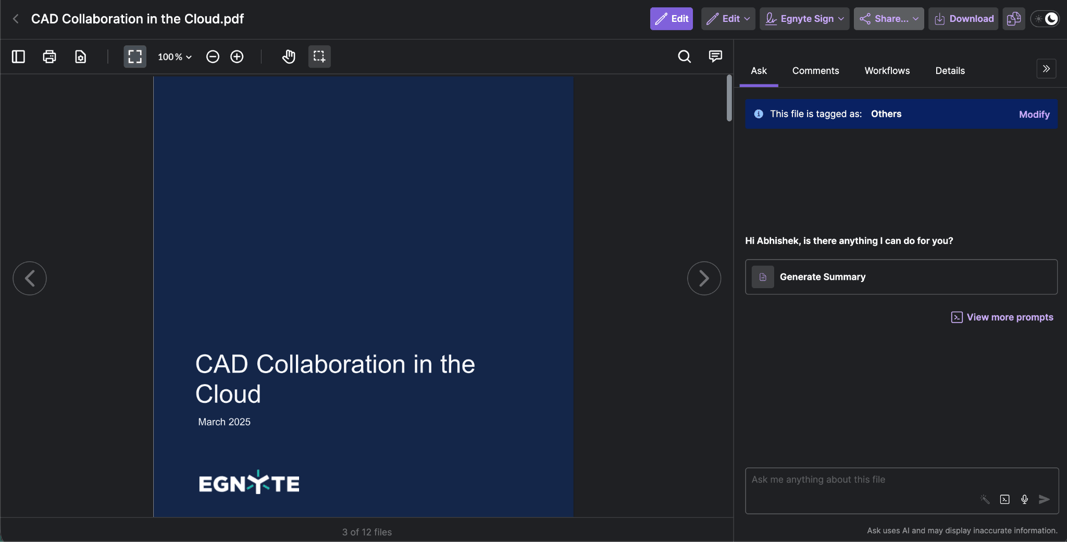
With this release, you have two ways to preview a document—full preview and Quick View.
Full Preview
You’re probably already used to full preview. When you click on a file, it opens the full preview experience, where you can take advantage of a variety of actions.
Quick View
Sometimes, you may need to find a specific file, or even a specific item within a set of documents.
When you’re in the full preview, that process may require a few extra steps: opening a file, realizing it’s not the right one, going back, and trying another.
Quick View makes that process faster and easier. Imagine you are working on a presentation, and there is a particular slide that resonated really well, but you aren’t sure which presentation it was in. Instead of opening a file, clicking through it in preview, and realizing it’s not the right one, you can use Quick View.
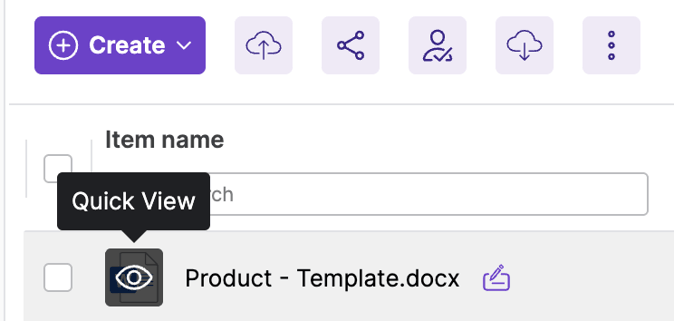
Simply hover over the file icon, and an eye icon will appear. Click it, and Quick View will instantly open a lightweight preview of the document. Now, you can click into Quick View, and then click into another file as needed.
You can avoid accidentally opening the same file you just looked at again.
Once clicked, Quick View displays the essential options you see in the full preview.
Another benefit is being able to see a document summary within Quick View. Just select the Summarize File option, which quickly summarizes the file using AI Assistant.
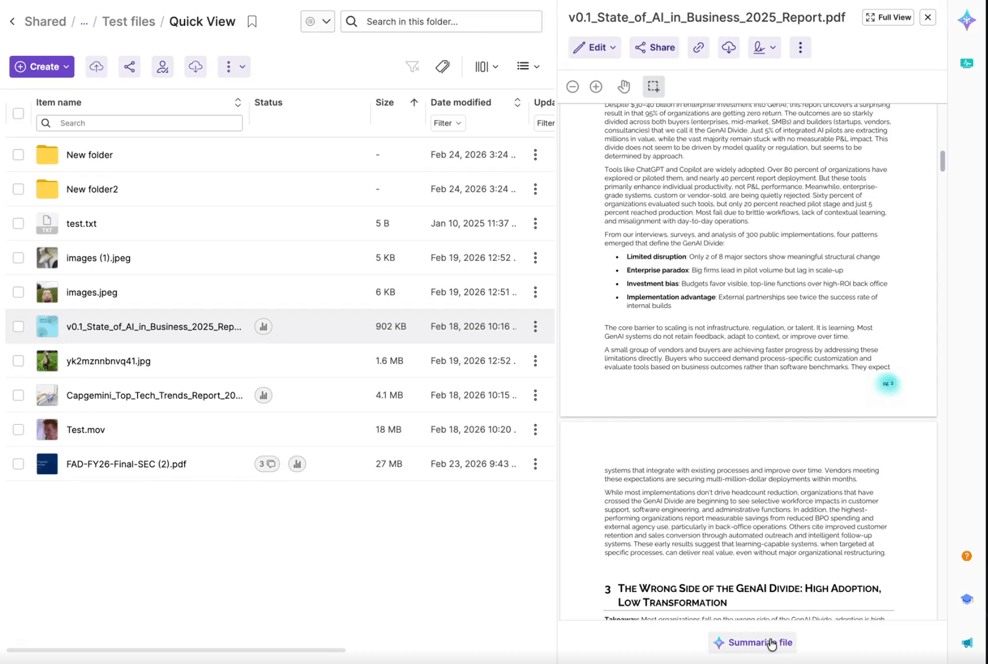
Once it’s initiated, an AI summary pops up that you can use to get an overview of the contents of the file. You can also dig deeper into the file with AI Assistant in the same view. Quick View will be available to all users who have access to our AI Assistant.
With the release of Quick View, you get instant, contextual previews to work smarter and move faster. Reach out to learn more today!